Replacing SBS self-signed certificates with 3rd party SSL certificates
http://blogs.technet.com/sbs/archive/2007/08/21/how-to-install-a-public-3rd-party-ssl-certificate-on-iis-on-sbs-2003.aspx
The journey of an IT systems integrator... from SBS to the Enterprise.
Posted by
Nick
at
11:01 PM
0
comments
It’s been almost a year since I posted the series of articles on how to manage IIS certificates. So in keeping with my theme of posting entries that typically have some basis in day-to-day operations, I thought I’d add something on renewing certificates, ahead of expiration.
Just a quick reminder on IIS versioning…
IIS 5.0 Windows 2000
IIS 5.1 Windows XP
IIS 6.0 Windows Server 2003
In my situation I’m running IIS 6.0 on 2003, but the KB article “How to Renew Certificates That Are Used with IIS 5.0” follows closely enough; and combined with the previous series of articles, it should prove helpful for future reference.
The short overview:
1) In the IIS console, right-click on your site, click properties, Directory Security tab, then server certificate.
2) Click next, then “Renew the current certificate”, next, next, next.
3) Copy and paste the text from the file of the resulting certificate request to the clipboard.
4) Submit the certificate request to a certificate authority (e.g. http://servername/certsrv/) (See the KB, steps 5-11)
5) Download the certificate from the CA
6) Open up the CA MMC tool, and issue the pending request (this is the easiest step to overlook)
7) In the IIS MMC console, right-click your site, Directory Security tab, then server request, then process pending requests.
Again, for me, the easiest step to overlook is 6. So, even if you’re following along in the KB article, remember to issue the pending request in the CA MMC that you generated. Otherwise, you’ll get an error message to the effect of “Selected certificate was already installed to another server. Please, choose another response file.”
Additional Resources:
How to Renew Certificates That Are Used with IIS 5.0
http://support.microsoft.com/default.aspx?scid=kb;en-us;277891
SSL Overview: Part 5, Download and Install the Certificate within IIS (includes links to all original articles)
http://addicted-to-it.blogspot.com/2005/06/ssl-overview-part-5-download-and.html
Posted by
Nick
at
3:39 PM
0
comments
After taking a little break from this series of articles, this will be the final post in the SSL Overview series. If you've used the previous articles (which are linked up at the end of this post), you're almost finished.
So, now you’ll need to install the downloaded certificate for your web site within IIS.
Posted by
Nick
at
11:30 PM
0
comments
Continuing through the overview, we're at the point where we need to Approve the pending request.
1) Open the Certificate Authority MMC snap-in form the Administrative Tools menu. Click “Pending Requests”. Right-click the new request, and click “Issue”.
2) From a web-browser, connect to your Certificate Service site (http://
3) Click “View the status of a pending certificate request”.
4) Click on the “Saved-Request Certificate”.
5) Download the certificate, choosing “DER encoded”, saving it to your local system (by default this will be called “certnew.cer”)
Posted by
Nick
at
10:40 PM
0
comments
Labels: certificate authority, iis, ssl
So you've been following the online, but you put the CA on the same IIS server as your SUS server. That or, being a dilligent sysadmin you ran IIS lockdown tool on your IIS server (good for you, by the way!). Well if you've done the above, then your at the point where you're getting the error...
Failed to create ‘Certificate Authority Request”
Pain in the neck, right? Well, don't worry... it's actually not too bad.
To resolve this error, perform the following steps:
1) Open IIS, go to the properties page for the site where certsrv is installed (e.g. “Default Web Site).
2) Go to the “home directory” tab, and click “Configuration”.
3) Click the options tab, and put a check in the “Enable session state box”, and choose 20 minutes. Now restart IIS (command prompt, type “iisreset”).
Now go ahead and resubmit the request to your CA. It should work just fine now.
Posted by
Nick
at
7:40 PM
0
comments
Labels: certificate authority, iis, ssl
If you've been following along with the previous posts, you'll see that we're progressing through the original outline. We've already created a certificate request using the IIS MMC, and we're at the point where we need to submit the request to a Certification Authority (CA).
The first thing you need to do is to make sure that you already have a Certification Service installed on a server. From an architecture standpoint, you may want to consider placing this on an internal box running IIS, as opposed to an Internet facing system. There are also some considerations to take into account as far as using an AD-integrated CA, or a stand-alone CA. In this scenario I have used a stand-along CA.
In any case, it's time to go through the approval process.
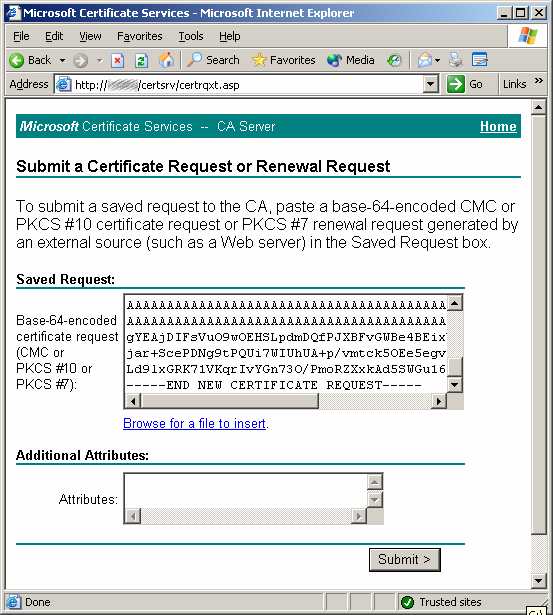
1) Using IE (internet explorer) browse to your certificate server (http://server-name/certsrv).
2) Click “Request a Certificate”
3) Click “Advanced certificate request”.
4) Choose to “Submit a certificate request by using a base-64-encoded…”
5) Browse to the certificate request you created earlier (e.g. “c:\certreq.txt”), and open it in notepad. Copy the entire contents of the file (including the “-----Begin--- and ----END--… lines), and past it into the certificate request box.
Reference this link for further details.
6) Click Submit.
7) You should see a message indicating that your Certificate request has been received, and that you must wait for an administrator to approve.
Side Note: If you receive an error to the effect of "Failed to Create Certificate Authority Request", this seems to be caused by SUS (and the IIS lockdown tool).
I will be following up with a work-around for this error, as well as the remaining posts detailing the original outline.
Posted by
Nick
at
12:13 AM
0
comments
Labels: certificate authority, iis, ssl
To follow-up on the outline posted in my SSL Overview posting, I will be digging into this process to break things down into a step-by-step approach.
Creating a certificate request isn't too difficult. So to get to the point, you need to launch the IIS MMC and connect to the server that is (or will be) hosting the site that needs the certificate...
1) Launch IIS as a domain administrator
2) Open the Default web site, and right-click properties
3) Select the Directory Security tab, and click “Server Certificate”
4) Select "Create a new certificate", click Next.
5) Select prepare the request now, but send it later. Click Next.
6) Choose identifying information (e.g. “Default Web Site”), bit-length 1024., Next. Again, enter more identifying information, click next.
7) The most important part of the certificate request is to choose the correct naming for the site.
Posted by
Nick
at
10:27 PM
0
comments
Labels: certificate authority, iis, ssl
I’m often surprised by how many people aren’t aware that you can create and install SSL certificates without going to a publicly trusted Certificate Authority (CA). Windows 2000/2003 has everything you need built right in, so take advantage of it!
Maybe you want to use SSL to encrypt login credentials for accessing your corporate intranet, or for providing secure access to web services... think SQL Reporting Services, and Exchange/OWA. If the business-situation warrants it, take advantage of what Microsoft already offers!
When circumstances permit, use IIS and the built-in Windows Certification Authority make and approve certificate requests.
Overview
Posted by
Nick
at
6:26 PM
0
comments
Labels: certificate authority, iis, ssl